
Find the official Windows 10 package
Start with the complete printer or scanner model, not with a generic file name.
Enter the complete Canon model in the homepage finder, select Windows 10 and choose the correct region. Follow the result to Canon's official support area, then open Drivers & Downloads for the same model.
A printer can print through a basic operating-system driver while the scanning application or scanner driver is still missing. Use the package description and supported-device list as the final compatibility check.
- Confirm the modelRead every letter and number from the device label.
- Select Windows 10Correct the operating-system filter when Canon detects it incorrectly.
- Read the package descriptionCheck whether the utility is standalone, bundled or part of a scanner driver.
- Save the source detailsKeep the regional support page and package context for a later reinstall.
Check architecture and package type
Open Settings > System > About and record whether Windows 10 is 64-bit or 32-bit. The Canon model page remains the authority because support can differ between product families.
Do not use an installer copied from another model or an archive that promises a universal IJ Scan Utility. If the official page offers a complete setup package, keep that package intact instead of extracting an unknown file.
| Check | What to confirm | Why it matters |
|---|---|---|
| Windows 10 | 64-bit or 32-bit system | Matches the supported package |
| Complete model | Every letter and number | Prevents a model mismatch |
| Package type | Utility, driver or complete setup | Explains installed components |
| Publisher | Official Canon context | Keeps the source traceable |
Install the package and run a first scan
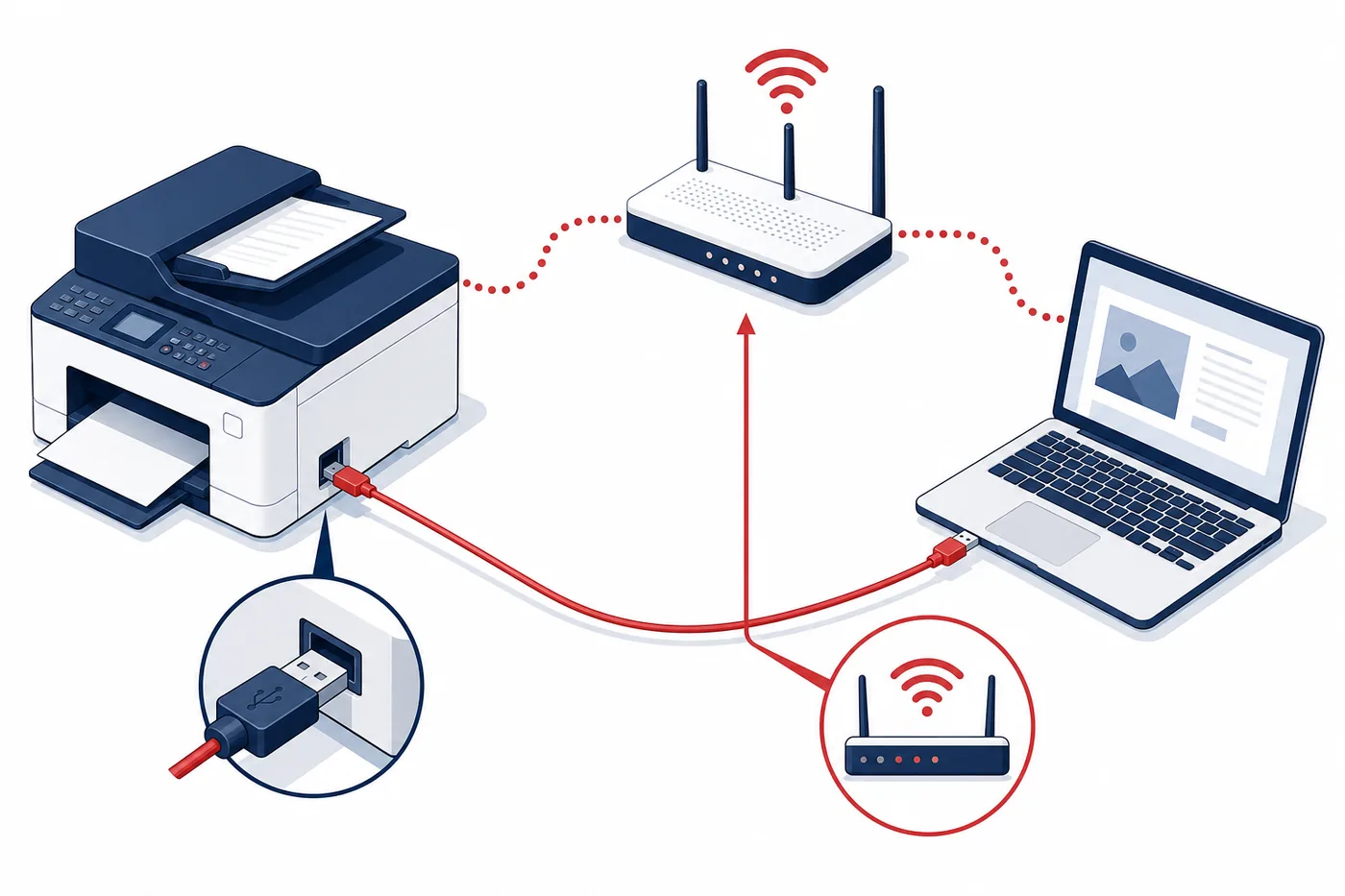
Run the official installer with the printer powered on and follow its connection timing. After any requested restart, open IJ Scan Utility from Start or the Canon Utilities folder, select the scanner and save one ordinary document to a local folder.
Change resolution, OCR, cloud folders and naming rules only after the first test file opens correctly. This separates an installation problem from a destination or advanced-setting problem.
- Confirm the model: Read every letter and number from the device label.
- Select Windows 10: Correct the operating-system filter when Canon detects it incorrectly.
- Read the package description: Check whether the utility is standalone, bundled or part of a scanner driver.
Choose USB, Wi-Fi or Ethernet scanning
The download is only one part of a working scan setup.
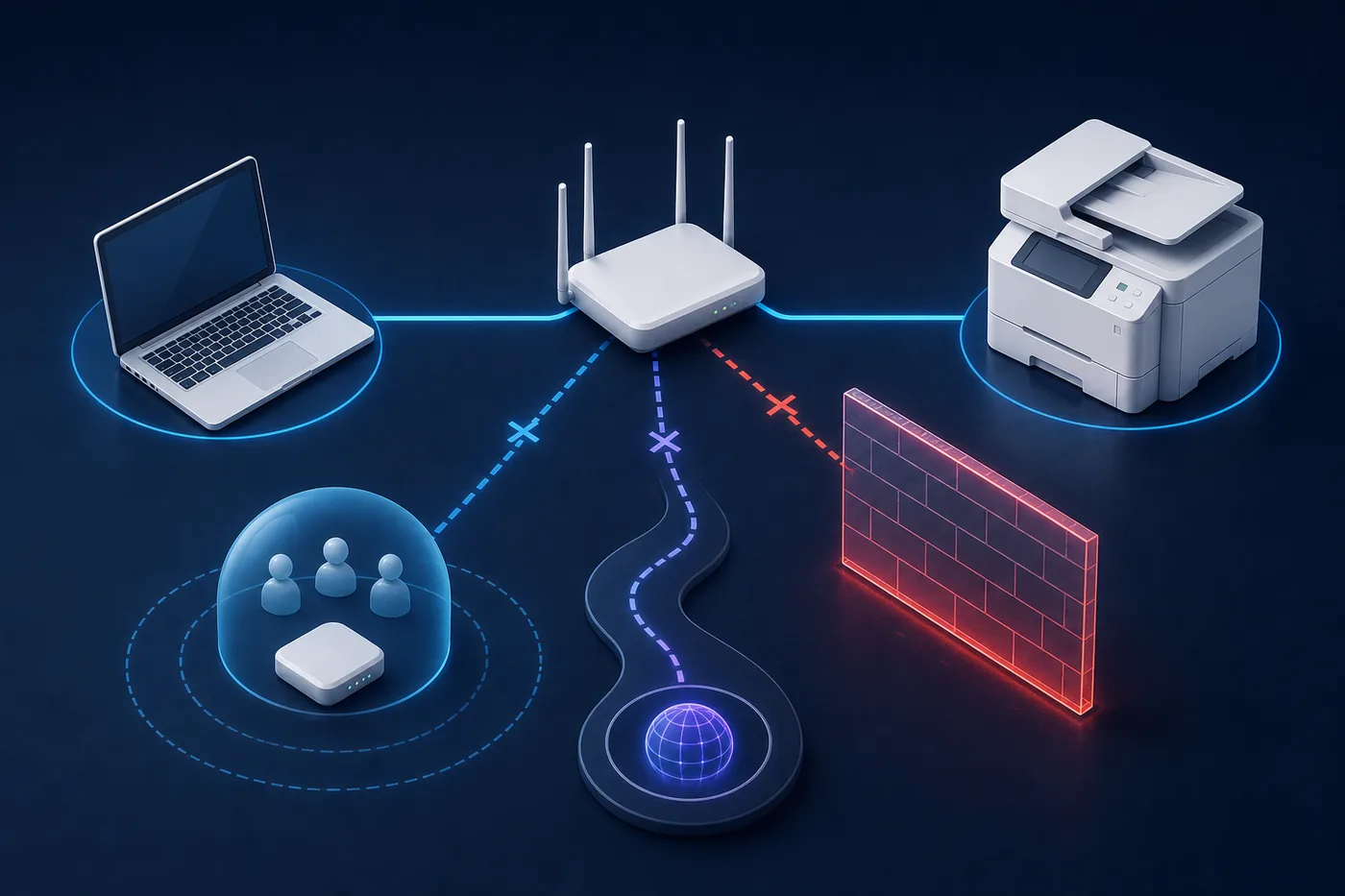
For USB, use a direct data cable for the first test and connect it when the installer asks. For Wi-Fi or Ethernet, keep the printer and computer on the same local network; guest isolation, VPNs and firewall rules can block scanner discovery.
If two scanner entries appear, choose the one matching the active connection. An offline duplicate can look valid in the list but will not complete a scan.
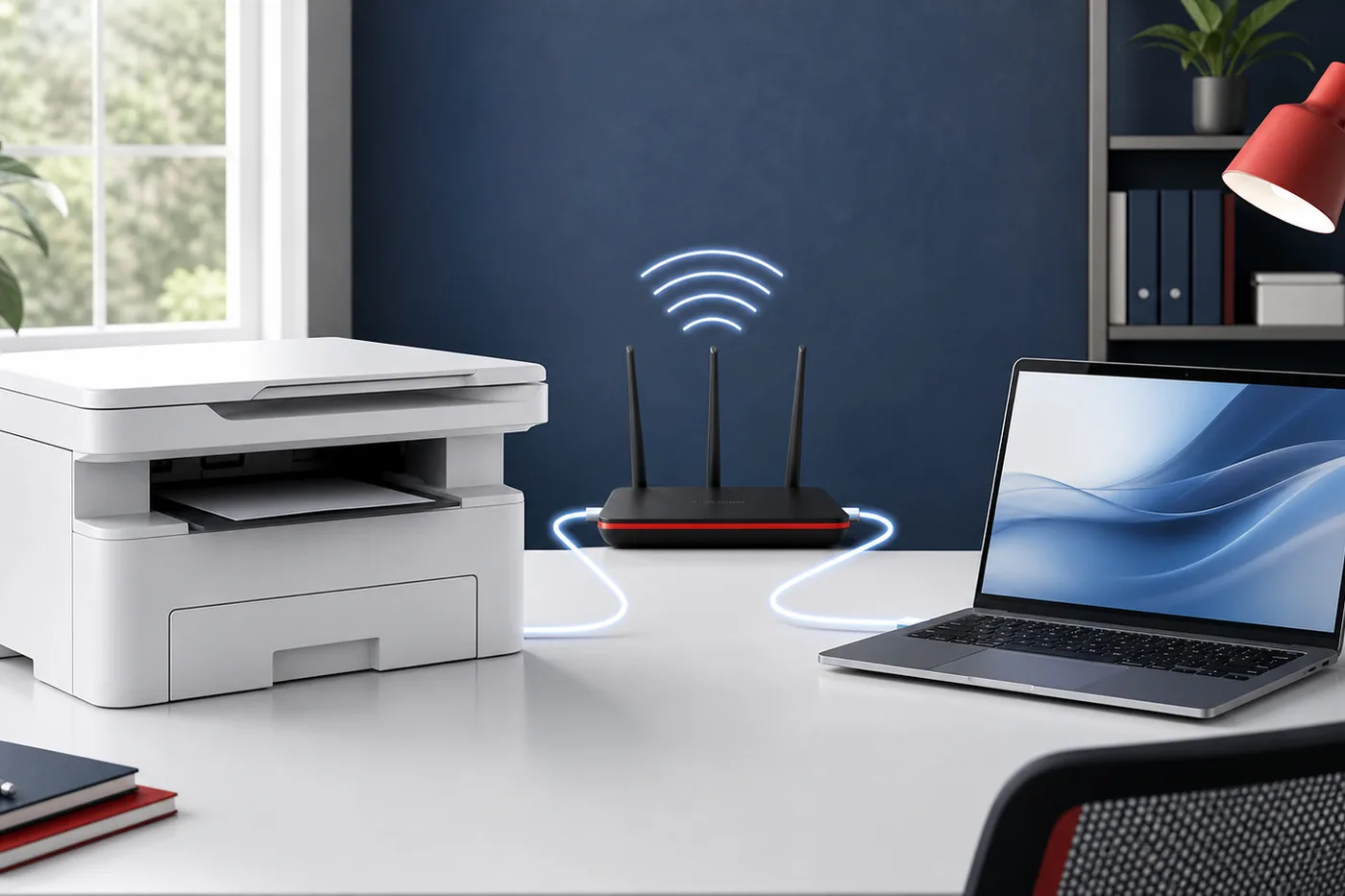
| Connection | First check | Common blocker |
|---|---|---|
| USB | Direct data cable | Connection timing |
| Wi-Fi | Same local network | Guest isolation or VPN |
| Ethernet | Same routed LAN | Firewall or subnet rule |
Fix a missing app or scanner
If IJ Scan Utility is not present, the installed package may contain only a print driver. Return to the exact model page and review the software, scanner-driver and complete-setup categories.
If the app opens but no scanner appears, restart both devices, verify USB or local-network connectivity and recheck the scanner selection. Avoid registry cleaners and repackaged driver sites.
Check the Windows 10 device list after installation
The printer queue and scanner component can appear as separate entries.
After setup finishes, open Settings > Devices > Printers & scanners and confirm the exact Canon model. Then search Start for IJ Scan Utility or Canon Utilities. This verifies that the scanner path was registered, not only that Windows can print.
If more than one entry appears, keep the one matching the active USB or network connection and run a one-page test before removing anything. An old queue can explain confusion, but it is not a reason to install a package for another Canon model.
- Check the device listConfirm the physical model and the Windows entry use the same name.
- Find the utilitySearch Start and Canon Utilities for the installed scan application.
- Match the connectionChoose the USB or network entry that is currently in use.
- Test before cleanupSave one local scan before removing an old or duplicate entry.
Keep a reliable download record
Record the model, region, operating system, package type, connection method and date checked. Because Canon can change package availability by model and market, this record is useful context rather than a universal latest-version claim.
Use the current official model page again before a future reinstall. Keep important scanned documents in a normal backup system; the utility's save folder is not a document backup.
| Record | Value |
|---|---|
| Model | Complete Canon model |
| System | Windows 10 and architecture |
| Source | Official regional support page |
| Test | One local scan opened successfully |
IJ Scan Utility Windows 10 download questions
Can I download IJ Scan Utility for Windows 10 separately?
It depends on the model and region. Canon may publish the utility separately or bundle it with a scanner driver or complete setup package.
Where is the 64-bit IJ Scan Utility Windows 10 download?
Open the official Canon page for the exact model, select Windows 10 and choose the architecture shown for that device. Do not infer compatibility from a file name.
Why can I print but not scan on Windows 10?
Printing may use a basic driver while scanning still needs the Canon scanner driver, utility and correct device selection.
How do I verify an IJ Scan Utility Windows 10 download?
Check the Canon regional domain, exact model, selected operating system, package description and publisher prompt, then run a one-page local scan.
Should I keep an old installer?
You may keep it as a record, but begin a future reinstall from the current official model page because package support can change.