The quickest way to scan from a Canon printer to email
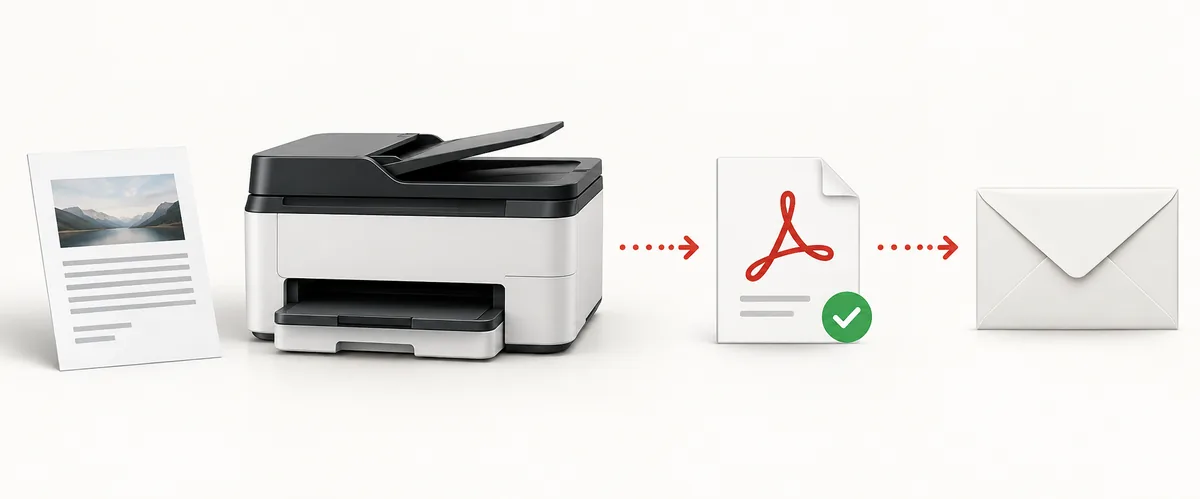
Choose the route that matches the features you can actually see on your printer and computer.
Look for Scan to E-mail in the printer menu or an email destination in the Canon scanning app. If neither is available, scan to a computer, save a PDF, and attach it in your usual email app. A missing panel command does not mean the scanner is broken.
PDF is usually easiest for letters and forms. Open the file, check that every page is readable and in order, and verify the recipient before sending. JPEG can suit a single photo; it is less convenient for multi-page documents.
Choose between printer email and a computer attachment
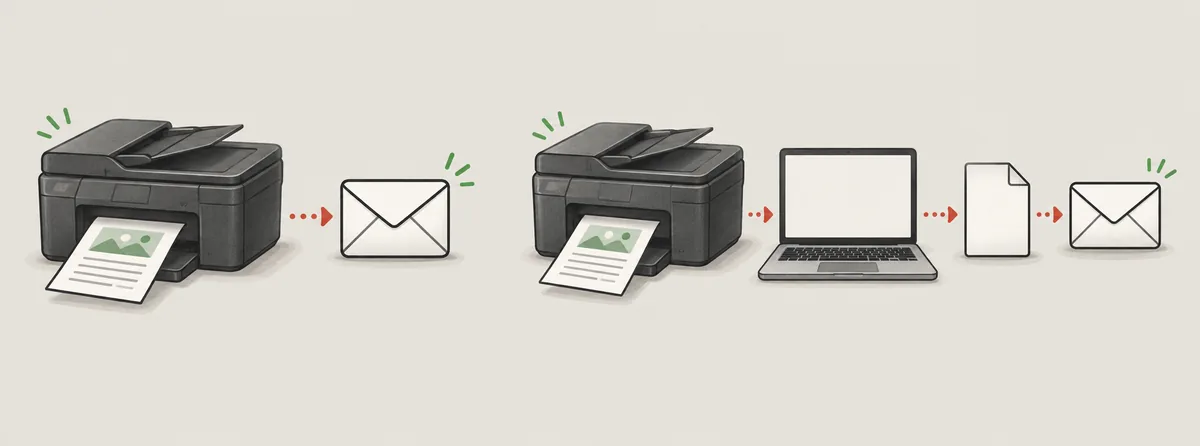
The two routes have different requirements and produce the same practical result: a scan that reaches the intended recipient.
Printer-panel email avoids opening a computer, but requires a supported model and mail settings accepted by your provider. Scanning to a computer adds a step and lets you inspect, rename, or resize the file before choosing an email service.
If you are unsure which route is available, start with the computer. Confirm the scan works first, then attach the file. Check the exact model manual before trying panel email; menu names and server settings vary.
| Route | What you need | Best starting point |
|---|---|---|
| Printer panel to email | A model with a documented email function, a network connection, and mail settings accepted by the provider | Use it when the printer menu explicitly offers email and the manual explains setup |
| IJ Scan Utility to email app | A supported Canon scanning app and a compatible desktop mail program configured on the computer | Use it when the installed scan profile offers an email handoff |
| Scan to PDF, then attach | A working scanner app, a folder you can find, and any email app or webmail account | Use this general fallback when a direct email option is unavailable |
Send a scan from a supported Canon printer panel
Canon's panel-to-email workflow depends on the model and a correctly configured outgoing mail service.
On supported models, Canon's panel workflow uses a network connection and Remote UI to register email settings before sending scanned data. Find the complete model name and verify the feature in its official manual; similar product names can have different menus.
Use outgoing-server, sender, authentication, and encryption details from your email provider, and confirm that the printer supports them. Settings copied from another model may fail. Do not disable account security to force a connection; use the computer route if the provider requires a method the printer cannot support.
Send one test page to an address you can check. If it fails, note the error and check the network and provider settings separately.
- Confirm the exact modelRead the complete model from the label or display, then verify that its Canon manual documents scan-to-email.
- Connect the printer to your networkUse the connection method in the model guide and confirm the printer is online on the intended local network.
- Configure mail in Remote UIEnter only the outgoing server, sender, authentication, and encryption details supported by both the printer and email provider.
- Run one controlled scanSend a single page to a mailbox you can check, then verify the message, recipient, attachment, and scan quality.
Scan with IJ Scan Utility and attach the file to email
This route scans on the computer first. The app may open a draft for you, but only when the installed version and mail program support that handoff.
Wake the printer and connect it by USB or to the computer's local network. Open the Canon utility supplied for your model, select the full scanner name in Settings, and choose a document profile and destination. Labels vary by model and release.
If the installed app offers Attach to E-mail, it may hand the file to a compatible desktop mail client. A browser sign-in does not guarantee that webmail will open. Configure the supported mail app first; if the command is absent, save the scan and attach it manually.
If no draft appears, check the destination folder; the file may already be saved. Attach it manually.
- Select the scannerOpen the Canon utility and confirm that Settings lists the intended printer or scanner.
- Choose a document profileSelect Document or an equivalent profile, then choose PDF and a destination you can locate.
- Use the email destination if availableChoose the installed app's email handoff only if it is shown and your desktop mail client is configured.
- Review the draft or saved fileCheck the scan and attachment before sending; otherwise open the PDF and attach it to a message yourself.
Save a PDF first, then attach it manually
A saved file gives you more control and is the most predictable option when the printer or app cannot send email directly.
Select the correct scanner and a document profile, choose PDF and a familiar local folder, then scan one page. Open it and correct cropping, orientation, or readability before continuing. This confirms the scan path works independently of email.
Attach the PDF in your email app or webmail and wait for upload to finish. For a large file, lower color or resolution only while text stays readable, or use an approved sharing method. Avoid public links for private records.
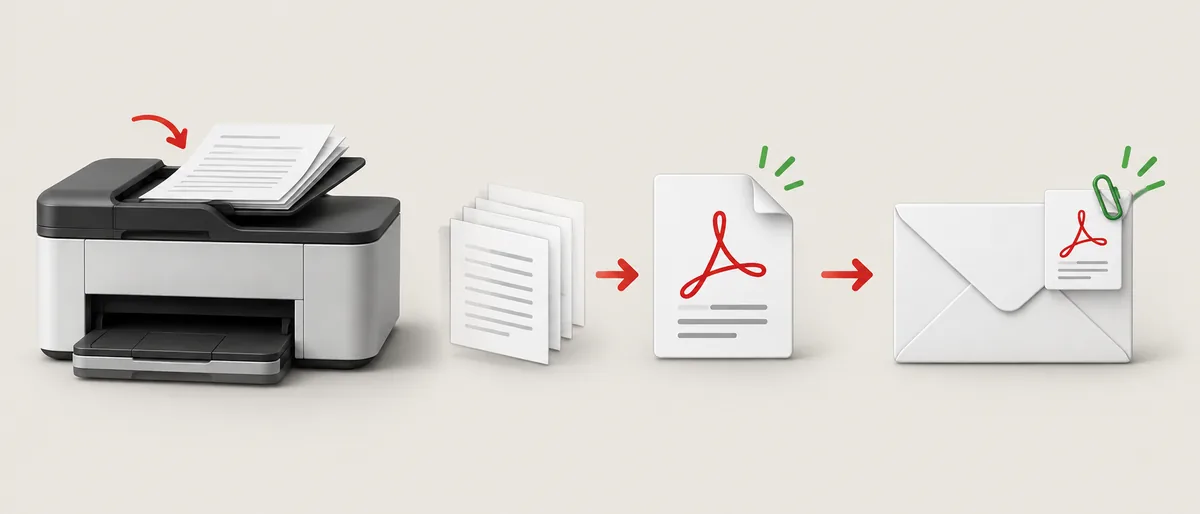
- Scan to a local folderChoose PDF and a recognizable location; use a short filename that identifies the document without exposing sensitive details.
- Inspect the saved fileOpen every page and check orientation, edges, legibility, and page order before composing the message.
- Attach and verifyUse your email app's attachment control, wait for it to finish, and confirm the displayed filename and recipient.
Fix common Canon scan-to-email problems
Identify which handoff failed: scanning, opening a draft, network delivery, or attaching the saved file.
No email command: verify support in the exact model manual. If the computer cannot see the scanner, check its connection, selected model, and official software before changing mail settings.
No draft from IJ Scan Utility: check for a compatible default desktop mail app and look in the scan folder. Open the saved file and attach it manually if needed; browser webmail may not work as a direct handoff.
Printer mail-server error: compare the outgoing settings with current provider instructions and the Canon manual. Check network access, authentication, and encryption. If the provider requires an unsupported secure method, use computer attachment instead of weakening account security.
Unreadable or oversized attachment: open the PDF, adjust settings only while text remains legible, and check the provider's current size limit. For private records, use an approved sharing method and verify recipients before sending.
Canon scan-to-email questions
How do I scan from my Canon printer to an email address if there is no mail menu?
Scan to a computer, save a PDF, open it to check the pages, then attach it in your email app or webmail. The printer does not need a direct email feature for this route.
Can IJ Scan Utility send a scan through Gmail or webmail?
The email destination, when available, may hand the file to a compatible desktop mail program. It does not necessarily send through a browser-based webmail session. Save the scan and attach it manually when no supported handoff appears.
How do I scan multiple pages from a Canon printer into one email?
Use the model's document feeder when supported, or scan pages one at a time and use the app's add-page or multi-page PDF option. Check that the result is a single PDF and review its page order before attaching it.
Why does the printer scan but fail to send email?
The scan path may work while the outgoing mail server, authentication, encryption, network, or provider policy blocks delivery. Compare settings with the exact Canon manual and current provider instructions. Do not disable security to force a connection.
What should I do if IJ Scan Utility does not open an email draft?
Check whether a compatible desktop mail app is installed and configured as the default. Look in the scan destination folder; the file may already be saved. Open it and attach it manually in your email app or webmail.
What file type should I email from a Canon scanner?
PDF is usually the most practical format for letters and multi-page documents because it keeps pages together. JPEG can suit a single photo. Open the file and confirm its quality before sending.