What the Canon network scan utility actually does
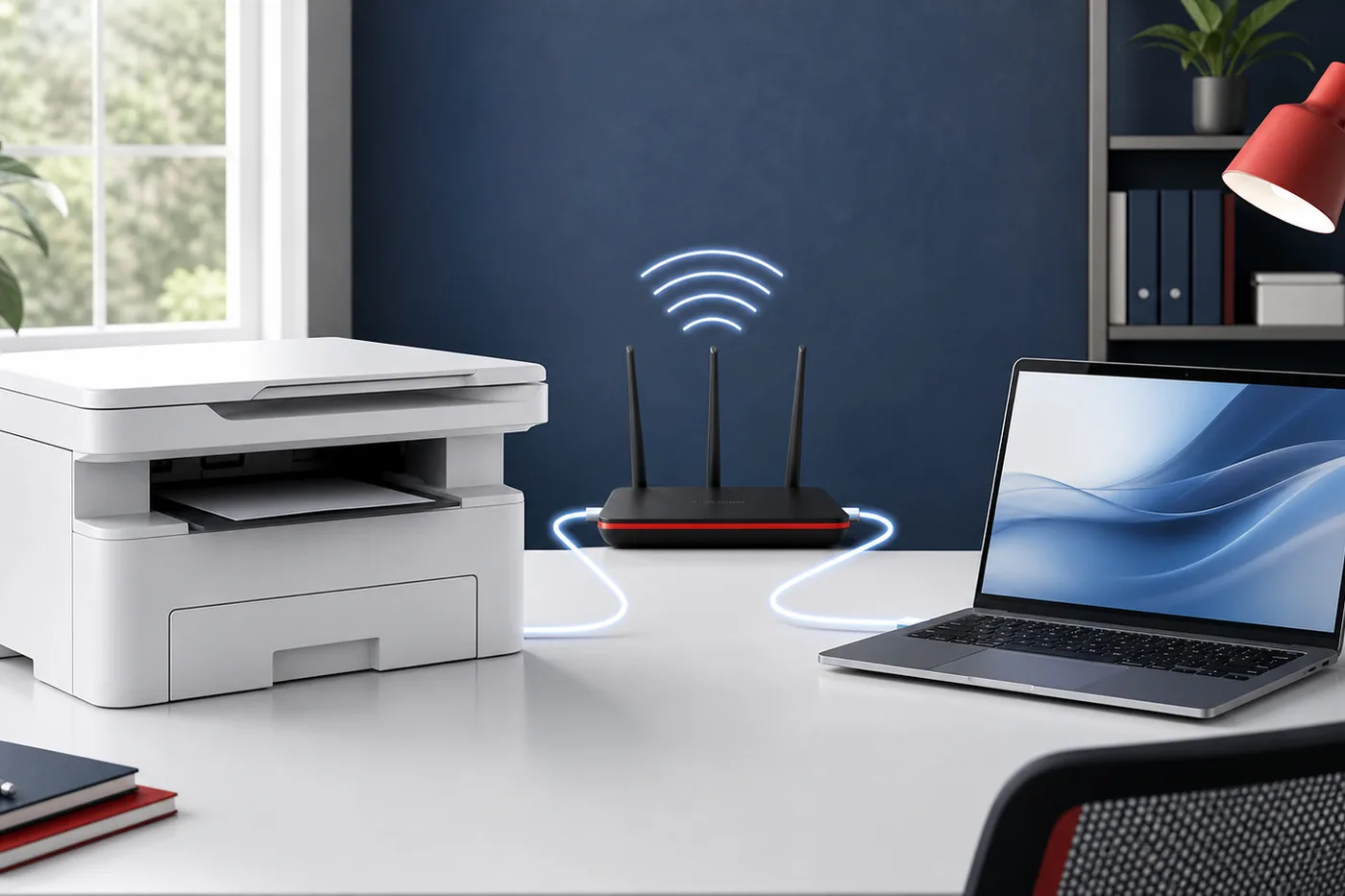
The network component helps the scanning application discover and select a compatible Canon device over the local network; it is not a universal replacement scanner driver.
On many Windows installations, IJ Scan Utility performs the scan while IJ Network Scanner Selector EX2 manages which network scanner is available to it. The selector can run in the notification area and keep a chosen network device ready for scanning from the computer or, on supported devices, from the printer operation panel.
Product names vary by model and platform. Compatible inkjet devices may use IJ Scan Utility, Macs may use IJ Scan Utility Lite, and imageCLASS or i-SENSYS devices can require MF Scan Utility. Start with the exact Canon model page instead of installing a similarly named application from a third-party site. If USB scanning works but network scanning does not, focus first on the selected scanner, local network, driver package and security software.
| Component | Main purpose | Do not confuse it with |
|---|---|---|
| IJ Scan Utility | Starts document, photo, PDF and custom scan tasks | A universal scanner driver |
| IJ Network Scanner Selector EX2 | Selects a compatible Canon scanner on the network | A standalone scan editor |
| ScanGear | Provides scanner-driver and advanced scan controls | The network discovery selector |
| MF Scan Utility | Scans from supported Canon laser and office devices | IJ software for PIXMA devices |
Verify the current model-specific package before setup
A current Canon support page is more reliable than a generic latest-version claim.
Canon can bundle the network selector inside a full driver and software package, a scanner driver package or another recommended setup download. The visible version, release date, file size and supported operating systems can differ between two printer models and between Canon regions.
For that reason, this guide uses official support-page fallbacks rather than a guessed direct file link. Select the model, operating system and region, confirm the scanning package, and record the exact model suffix, package title and download date. A model-specific record is useful; a generic “latest IJ utility” label is not.
Prepare the printer, computer and local network
Network discovery normally succeeds only after the scanner driver is installed and both devices can communicate on the same LAN.
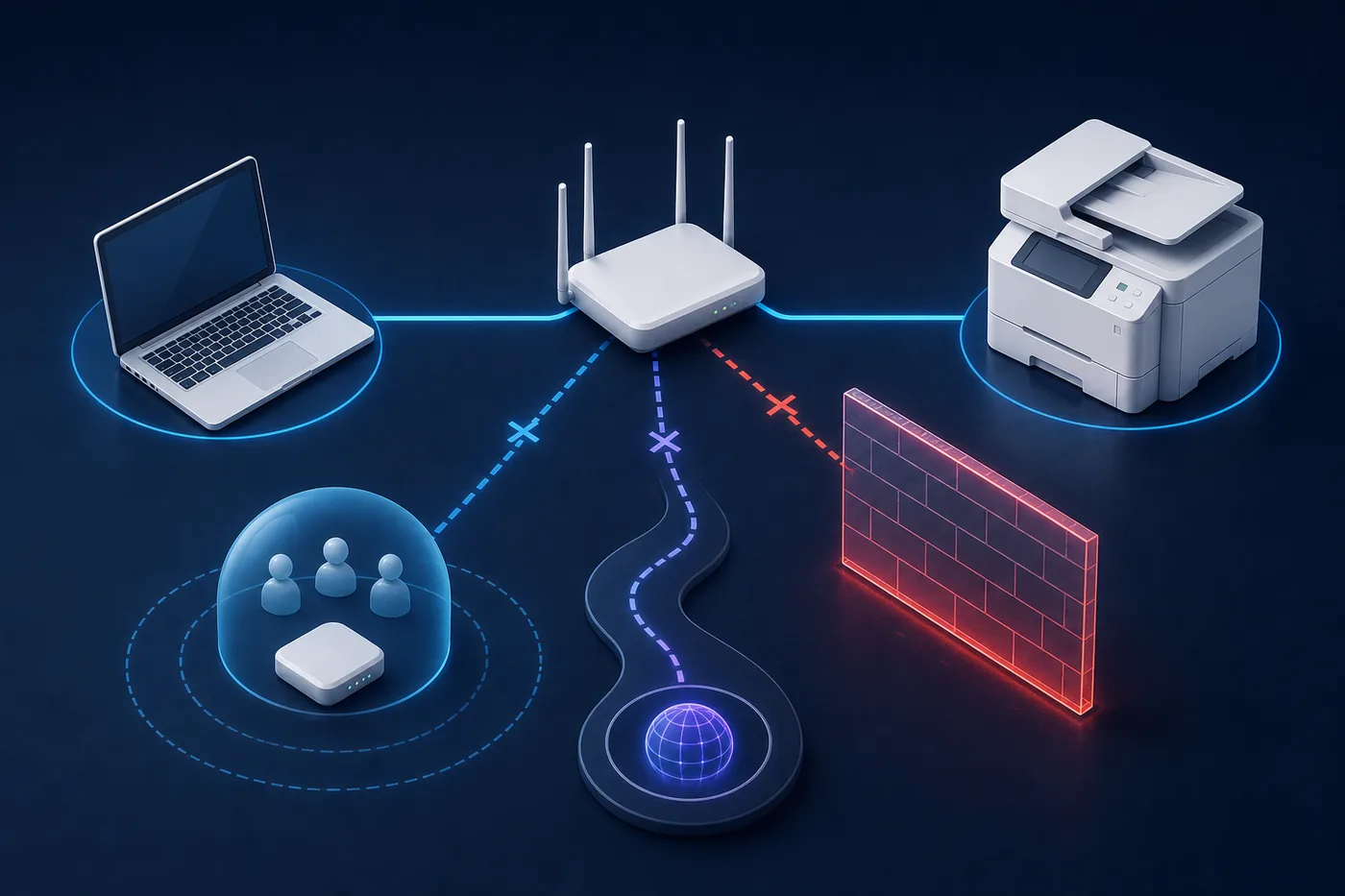
Connect the printer to the ordinary home or office network, not an isolated guest network. Connect the computer to the same local network by Wi-Fi or Ethernet. The devices do not need to use the same radio band, but the router must allow traffic between them. A guest SSID, client isolation or separated business VLAN can provide internet access while blocking scanner discovery.
Install the model-specific Canon package before expecting the selector to list the device. Windows may install only a basic print driver. During the first test, disconnect the VPN, keep the printer awake and confirm its current local IP address; after a router change, search again instead of relying on an old entry.
- Exact Canon model and supported operating system confirmed
- Scanner driver or complete Canon package installed
- Printer and computer on the same reachable local network
- VPN and guest-network isolation removed for the first test
- Printer awake with a current network address
Choose the network scanner entry instead of the USB entry
One Canon device can appear more than once when both USB and network connections have been configured.
Use the entry that matches the active connection. A USB device is a useful diagnostic path because it avoids router discovery, but choosing that entry does not make Wi-Fi scanning work. The network entry may include the device name, network marker or a different port association depending on the package.
Do not remove every scanner entry as a first step. Test the known USB path, note which entry succeeds, then switch to the network device in IJ Network Scanner Selector EX2. Remove an obsolete duplicate only after identifying it and checking Canon's model instructions.
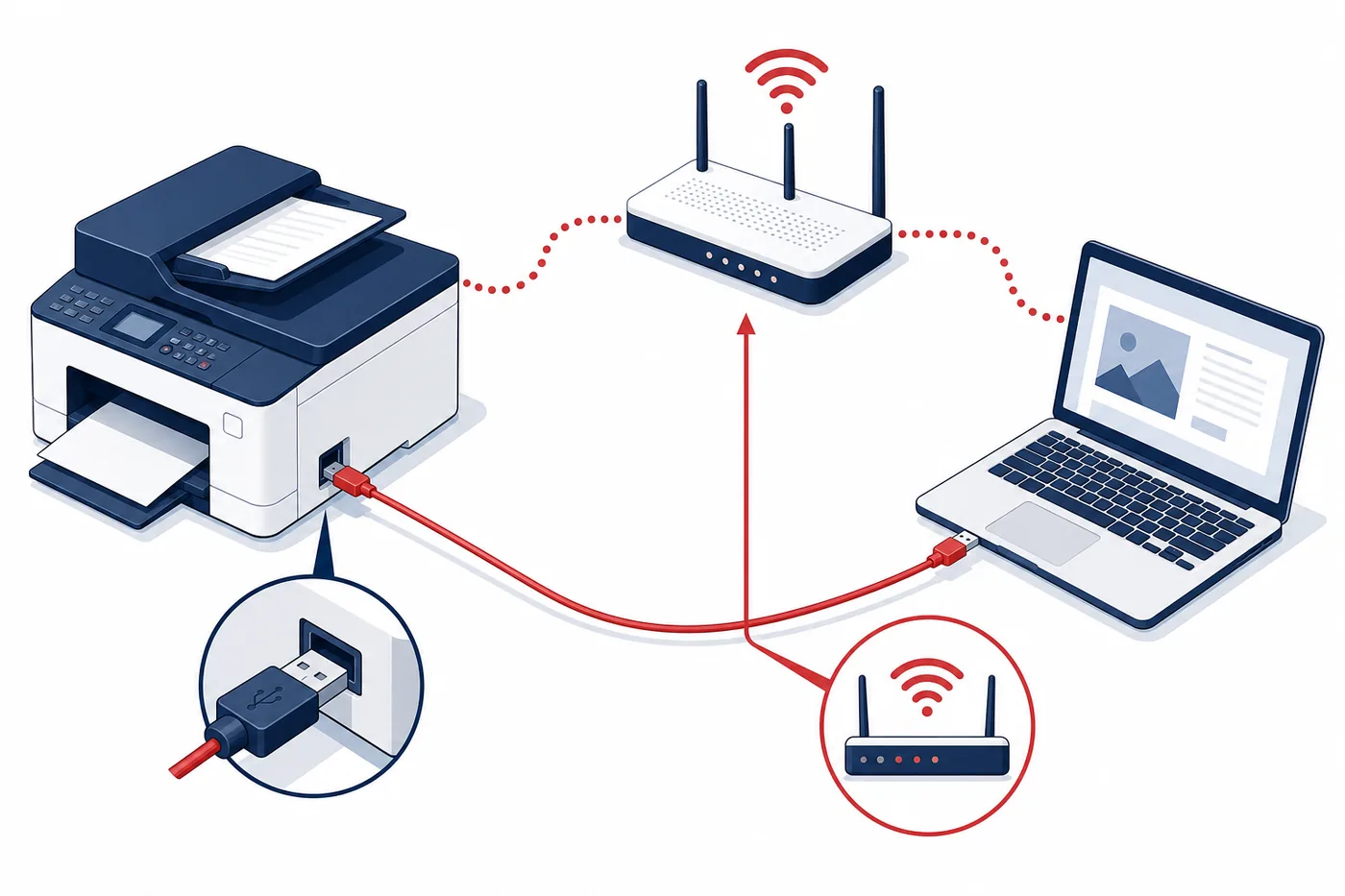
| Connection | Best use | Selection check | Typical failure |
|---|---|---|---|
| USB | Initial driver and hardware test | Choose the direct USB scanner | Cable, port or incomplete driver |
| Wi-Fi | Shared home or office scanning | Choose the network version of the device | Guest isolation, VPN or stale IP |
| Ethernet printer | Stable office network connection | Choose the network scanner on the routed LAN | Subnet or firewall rule |
| Multiple entries | Systems previously used by USB and Wi-Fi | Match the entry to the current path | Offline duplicate remains selected |
Set up IJ Network Scanner Selector EX2 on Windows
The exact screen can vary, but the safe sequence is to open the installed selector, search for the device and register the correct network scanner.
Open the Windows Start menu and search for IJ Network Scanner Selector EX2 or the Canon Utilities folder. The selector may also appear in the notification area near the clock. Open its settings screen, wait for available scanners to populate and select the device that matches the model and current network connection.
If the device is not listed, search again after confirming the network. Use the current local IP only when Canon's model instructions support it. Confirm the selection, then make a one-page scan to a local folder before configuring panel workflows, cloud folders or OCR.
- Open the installed selectorUse Start or the notification-area icon; do not download another copy merely because no desktop shortcut exists.
- Search for scannersKeep the printer awake and allow the list to refresh on the same local network.
- Select the network deviceMatch the model and network connection, not an offline USB duplicate.
- Confirm and testOpen IJ Scan Utility and scan one page to a simple local folder.
- Add advanced workflows laterConfigure panel scanning, OCR or cloud destinations only after the local test works.
Fix a Canon network scanner that is not found
Change one layer at a time so you can tell whether the failure is the driver, device selection, local network or security software.
First prove the printer is online: print its network information, open its local status page when supported or check the router's device list. If the computer cannot reach the printer at all, reinstalling IJ Scan Utility will not repair guest isolation, a changed Wi-Fi password or a disconnected printer.
Next reopen the selector, remove only a clearly stale entry and search again. If USB works, preserve that evidence. Finally allow signed Canon components on the private network, restore firewall protection and check whether the VPN blocks local LAN access.
| Symptom | Likely layer | Safe next check |
|---|---|---|
| Printer prints but scanner is absent | Scanner package or selector | Install the official model package and reopen the selector |
| Scanner disappeared after router change | New network or IP address | Reconnect the printer and search again |
| USB works but Wi-Fi fails | Network discovery or selection | Choose the network entry and test without VPN |
| Works with firewall paused | Private-network security rule | Allow the signed Canon component, then restore protection |
| Works on main Wi-Fi, not guest Wi-Fi | Client isolation | Use the same non-isolated local network |
Download only through the official Canon model route
A network scan utility needs device-level trust because it communicates with local hardware and reads scanned files.
Avoid websites that present a single executable as the newest Canon network scan utility for every model. A trustworthy route identifies the exact Canon product, selected operating system, package purpose, publisher context and supported region. Cancel a download manager, archive or installer when the source and publisher cannot be verified.
This site does not host Canon files or claim a separate selector download for every device. Without a stable verified direct file, use the official model or regional support page. Keep the original filename and save the official page, model, connection type and date for future reinstalls.
Canon network scan utility questions
What is Canon IJ Network Scanner Selector EX2?
It is a Canon component used on compatible Windows setups to select a scanner or printer available over the local network for IJ scanning workflows. It is not a universal standalone scanner driver.
Where can I download the Canon network scan utility?
Open the official Canon support page for the exact model and region, select the operating system and review the scanner driver, full software package or listed network component. A separate download is not available for every model.
Why can I print over Wi-Fi but not scan?
Windows or macOS may have installed a basic print path while the scanner driver, Canon utility or network scanner selection is missing. Guest isolation, VPN routing and firewall rules can also block scanner discovery without stopping printing.
How do I select a Canon network scanner?
Open IJ Network Scanner Selector EX2, search for available devices, choose the entry matching the model and active network connection, confirm it and test a one-page scan in IJ Scan Utility.
Should I add the scanner by IP address?
Use the current local IP only when automatic discovery fails and the official Canon instructions for the model support that method. First confirm the printer and computer are on the same reachable local network.
What is the latest Canon network scan utility version?
There is no reliable universal version. Canon package versions, dates, sizes and included components vary by device, operating system and region, so verify the current official model page.
Does the network selector work on Mac?
The Windows product name and workflow may not apply to macOS. Compatible Macs commonly use IJ Scan Utility Lite and model-specific Canon software, so check the exact macOS release on the official model page.