Do you need MF Scan Utility or IJ Scan Utility?
Choose by product family, not by a generic download result.
Use MF Scan Utility for many Canon imageCLASS, i-SENSYS and MF laser multifunction devices. Use IJ Scan Utility or IJ Scan Utility Lite for many PIXMA, MAXIFY and CanoScan products. Some older laser models use MF Toolbox instead, so the exact model page remains the final authority.
Installing the wrong utility commonly produces an empty scanner list even when printing works. Read the full model label, open the matching Canon support page and check whether the software description names MF Scan Utility, IJ Scan Utility, IJ Scan Utility Lite or MF Toolbox.
| Device family | Usually expected utility | Action |
|---|---|---|
| imageCLASS / i-SENSYS / many MF models | MF Scan Utility | Use this guide, then verify the model page |
| PIXMA / MAXIFY / CanoScan | IJ Scan Utility or Lite | Use the site's Windows, Mac or model guides |
| Older MF laser models | MF Toolbox may be required | Follow the exact legacy support page |
Current official MF Scan Utility packages
The version number is platform-specific; there is no single universal installer.
For Windows 11 and Windows 10, Canon's currently verified standalone page lists MF Scan Utility 2.0.2. The package name is winmfscanutilityv202.exe and Canon reports 87,523,176 bytes. Supported systems include Windows 11 and current Windows 10 editions listed on the page.
For macOS, Canon packages MF Scan Utility with the scanner driver. The verified page lists Scanner Driver & Utilities 2.15.21, package mac-scan-v21521-00.dmg, 94,596 KB, with support for macOS 15, macOS 14, macOS 13 and macOS 12. Always recheck the model and regional page before installation.
| Platform | Verified package | Release date | Official size |
|---|---|---|---|
| Windows 11 / 10 | MF Scan Utility 2.0.2 | 2025-10-20 | 87,523,176 bytes |
| macOS 12-15 | Scanner Driver & Utilities 2.15.21 | 2026-02-05 | 94,596 KB |
Install and open MF Scan Utility safely
Use Canon's model-aware route and test one local scan before changing advanced settings.
Download from the official Canon page, accept the license only after confirming the model and operating system, then close other applications before running the installer. Windows users can search Start for MF Scan Utility. Mac users can open it from Applications after the driver-and-utility package finishes.
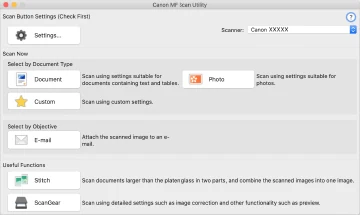
Select the scanner shown at the top of the main screen. If the device is connected over Wi-Fi or Ethernet, also check MF Network Scanner Selector and register the correct network device. Start with Document mode, 300 dpi and a local folder so connection and permissions are easy to diagnose.
Set the scanner, network device and save folder
A correct printer driver does not automatically prove that the scanner connection is ready.
Open Settings and confirm the product selected for each scan profile. On a network, the computer and Canon device should be on the same discoverable LAN; guest Wi-Fi, VPNs and firewall rules can prevent discovery. USB is the fastest control test when the network scanner does not appear.
Choose a destination folder you can write to, select PDF for documents or JPEG for single images, and enable date subfolders only if that organization is useful. Run a one-page scan and open the result before processing a large batch.
Choose PDF, file names and post-scan actions
MF Scan Utility can save, attach or send scans to another application.
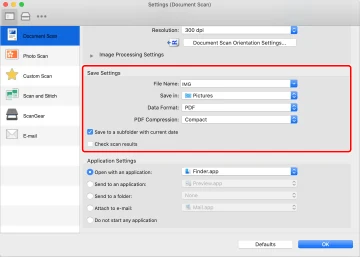
The Save Settings panel controls file name, data format, PDF compression, destination and whether the utility checks scan results. For receipts and letters, searchable or compressed PDF may be useful when available; for photographs, JPEG preserves a simple image workflow.
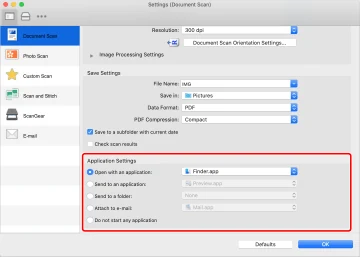
Application Settings can open the result in Finder or File Explorer, attach it to e-mail, send it to another application or leave it in the selected folder. Avoid sending directly to cloud or mail until a normal local scan succeeds.
Fix MF Scan Utility when the scanner is not listed
Most failures come from a mismatched package, network selection or incomplete driver installation.
Restart the Canon device and computer, confirm the exact model, then reinstall the full scanner driver and utility from the official page. On Windows, verify that MF Network Scanner Selector is running for network devices. On Mac, review local-network, files-and-folders and security permissions after installation.
If printing works but scanning does not, test USB, disable a VPN temporarily and remove duplicate inactive scanner entries. Do not download a renamed installer from a third-party driver site. Canon's model page is the safest fallback when the standalone utility page does not list your product.
MF Scan Utility download questions
What is the latest MF Scan Utility version for Windows?
Canon's verified Windows page lists MF Scan Utility 2.0.2, released October 20, 2025. Recheck the official page because availability can differ by model and region.
What is the current MF Scan Utility package for Mac?
Canon's verified Mac page lists Scanner Driver & Utilities 2.15.21, released February 5, 2026. MF Scan Utility is included with the scanner driver.
Is MF Scan Utility the same as IJ Scan Utility?
No. MF Scan Utility usually supports Canon laser multifunction families such as imageCLASS and i-SENSYS, while IJ Scan Utility usually supports PIXMA, MAXIFY and CanoScan families.
Why does MF Scan Utility show no scanner?
Check the exact model package, USB or LAN connection, MF Network Scanner Selector, firewall or VPN settings and whether the full scanner driver was installed.
Does this site host the MF Scan Utility installer?
No. This independent guide links to official Canon pages and does not host, rename or mirror Canon installers.