What is the right Canon G3010 scanner driver?
The safest Canon G3010 scanner driver route is the exact model page on Canon Support, not a generic driver mirror.
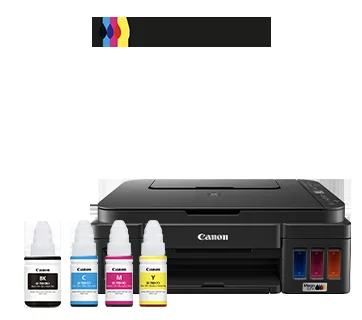
The PIXMA G3010 is an all-in-one printer, so the scan workflow depends on the model-specific driver and the Canon utility package shown for the selected operating system. At the time of the check, Canon listed both G3010 MP Drivers and a Full Driver & Software Package for Windows. The names are useful clues, but the live regional page decides which package is offered to your computer.
A basic print driver can make the printer appear in Windows while leaving the scanner workflow incomplete. If your goal is scanning, choose the package whose description includes the G3010 scanner components, install it for the exact operating system and then look for IJ Scan Utility in the Canon Utilities folder or Windows Start menu. Do not assume a package for a nearby G-series model is interchangeable.
| Search need | Best route | Why it fits |
|---|---|---|
| Canon G3010 scanner driver | G3010 MP Drivers or the listed full package | Keeps the exact model and scanner component together |
| Canon G3010 printer driver | The G3010 package on the regional Canon page | Avoids mixing a printer-only file with scan requirements |
| Canon G3010 IJ Scan Utility | Install the Canon package, then open IJ Scan Utility | The utility is the scan control surface, not a universal driver |
| G3010 driver download | Select the exact model and operating system first | The page can change packages by region and OS |
Verified Canon G3010 driver packages
Package names, dates and sizes are recorded here as a dated check, not as a permanent universal latest claim.
On August 1, 2026, the official Canon India support listing displayed G3010 MP Drivers Ver.1.04 with a February 26, 2026 update date and a 98.06 MB size. It also displayed G3010 Full Driver & Software Package (Windows) Ver.1.4 with a November 28, 2024 update date and a 20.09 MB size. The page may show a different selection when the region or detected operating system changes.
Use the MP Drivers entry when Canon describes it as the model driver package you need. Use the full package when the setup flow calls for the complete printer and scanner software bundle. Before opening a file, confirm the product name says G3010, the operating system is correct and the publisher context remains Canon. A saved filename or old installer is not proof that it is still the best package.
| Official listing checked | Recorded detail | When to verify again |
|---|---|---|
| G3010 MP Drivers | Ver.1.04 · updated February 26, 2026 · 98.06 MB | Before reinstalling or after an OS update |
| G3010 Full Driver & Software Package (Windows) | Ver.1.4 · updated November 28, 2024 · 20.09 MB | When the setup needs the complete Windows bundle |
| Regional product support page | Model, OS, language and package availability can change | Every new download or model move |
Match the G3010 model, region and Windows version
A correct package starts with three matching facts: the device label, the support market and the computer's operating system.
Read G3010 from the printer label rather than relying on a shortened Windows queue name. The product family matters because G2010, G3010, G3012 and G3110 can appear together in search results while their support pages and package lists remain model-specific. Keep the full model name visible while you search.
Canon regional catalogs are not identical. A package shown on an India, Asia, Europe or another regional support page may have a different language, operating-system filter or download description. Choose the market where the printer was sold or is officially supported, select Windows 11 or Windows 10 as appropriate and reread the package notes before downloading.
- Read the full G3010 model name from the device label.
- Use the Canon region where the printer is supported.
- Select the actual Windows version instead of trusting auto-detection.
- Check whether the listing is MP Drivers or a full software package.
- Keep the official support page open until the first scan works.
How to install the Canon G3010 driver
Install the verified model package first, then test the scanner before changing advanced save or network settings.
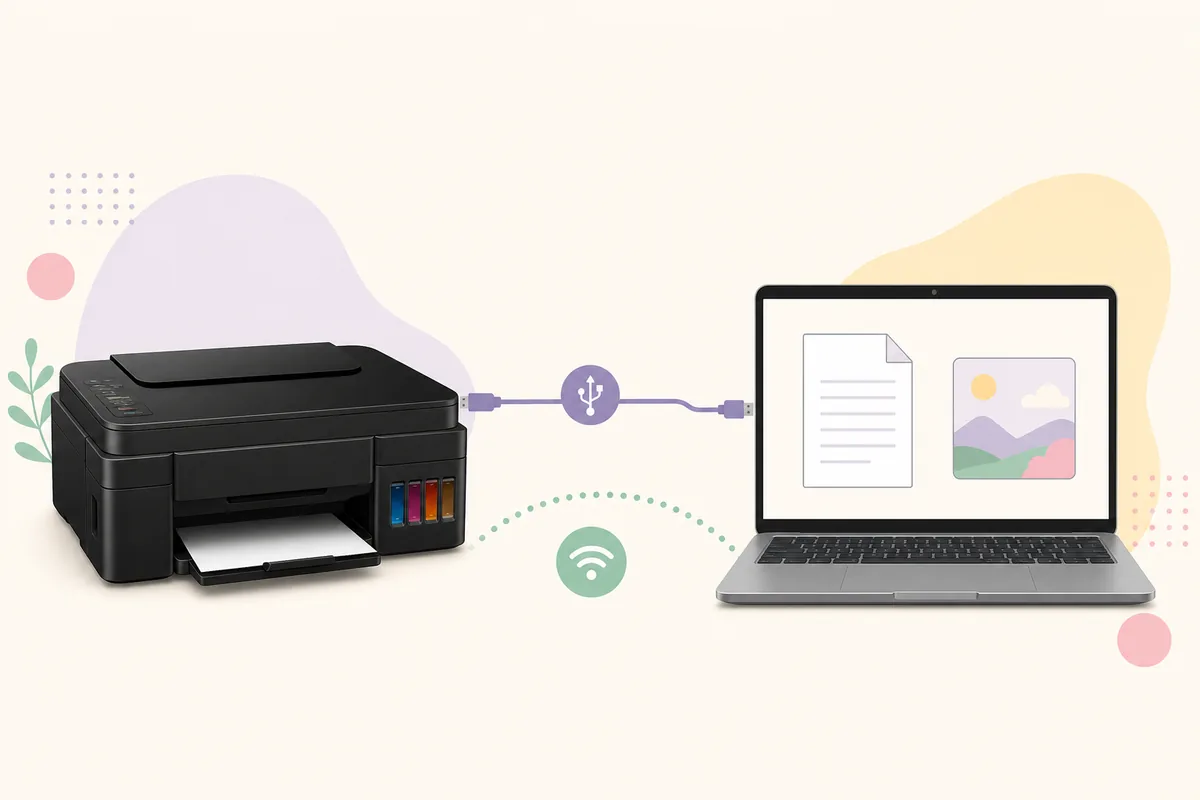
The exact installer screens can vary by Canon region and Windows release. Close unrelated printer utilities, keep the G3010 powered on and follow the connection timing shown by the official installer. Connecting a USB cable too early can leave a generic device entry that prints but does not expose the scanner correctly.
After setup finishes, restart Windows if the installer requests it. Search for IJ Scan Utility, open it and run one document scan to a simple local folder. Only after that test succeeds should you adjust PDF settings, resolution, auto-save destinations or other convenience options.
- Open the model pageUse the official Canon G3010 support route and confirm the product image or name.
- Select the operating systemChoose the installed Windows release manually when the page detects it incorrectly.
- Choose the packageCompare MP Drivers with the full package and read the supported-product notes.
- Run the installerFollow the Canon connection prompt and do not substitute a nearby G-series package.
- Test one scanOpen IJ Scan Utility and save a simple document locally before advanced configuration.
Open IJ Scan Utility and run the first scan
IJ Scan Utility is the practical scan control surface after the model driver package has been installed.
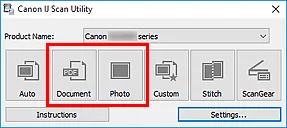
In Windows, search the Start menu for IJ Scan Utility or open the Canon Utilities folder. The application can expose document, photo, custom and ScanGear workflows depending on the installed package. The official Canon manual shows the utility's model selector and scan modes; the exact options can differ with the device and driver version.
Start with a single page on the flatbed. Choose Document for a normal paper test, save to a local folder and confirm that the file opens. If the printer appears for printing but not scanning, return to the G3010 package description, check the selected scanner and continue with the troubleshooting steps below rather than installing an unrelated utility.
- Use Document for a basic paper test.
- Save the first result to a local folder you can check.
- Confirm the selected device is the G3010, not an old duplicate.
- Change PDF, resolution or auto-save settings only after the test works.
Fix G3010 scanner problems after installation
Use the symptom to identify whether the problem is the package, connection, selected device or Windows security layer.
If the G3010 prints but does not scan, first confirm that the installed package was for G3010 and the selected Windows version. Then reopen IJ Scan Utility and check the device selection. A printer queue can survive with a basic print driver even when the scanning component was never installed.
For USB, try a direct port and keep the cable connected only when the installer or manual expects it. For Wi-Fi, confirm that the printer and computer are on the same reachable local network, disable a VPN for the first test and check that Windows allows the signed Canon component on a private network. Restore normal firewall protection after the diagnostic check.
| Symptom | Likely layer | Safe next check |
|---|---|---|
| Printing works but scanning is missing | Scanner package or utility | Recheck G3010 MP Drivers or the full package and reopen IJ Scan Utility |
| The installer cannot see the printer | USB timing, cable or network | Follow the official connection prompt and test a direct path |
| The wrong model appears | Old queue or nearby G-series entry | Compare the physical label and remove only a clearly stale duplicate |
| The scan stops at save | Folder permission or destination | Use a simple local folder before enabling cloud or OCR workflows |
| Wi-Fi printing works but scan discovery fails | VPN, guest isolation or firewall | Use the same private LAN and retest with the correct Canon selection |
Why the official Canon support route matters
A model-specific driver communicates with local hardware and should be verified by product name, publisher and operating system.
Avoid pages that promise one universal Canon G3010 latest driver or rename a file without showing the product context. Canon can revise a package, change the regional catalog or present a different full bundle after an operating-system update. A stable support-page fallback is more useful than a guessed direct file URL that may expire or lose its model information.
This site does not host Canon installers, claim that a third-party mirror is official or promise that one package works in every region. Keep the official support URL, the model name, the selected operating system and the check date with any reinstall record. That makes it easier to repeat the same verification after a system upgrade.
Canon G3010 driver download checklist
The correct download is the one that matches the physical G3010, the support region and the installed Windows release.
Before opening an installer, confirm five facts: the product says PIXMA G3010, the Canon page is the right region, the operating system is correct, the package description includes the required printer and scanner components and the publisher is Canon. After installation, open IJ Scan Utility and complete a simple document scan.
If the package or version shown on the live Canon page changes, follow that current listing rather than treating the dated values in this guide as permanent. The page's job is to explain the model-specific decision and first-scan workflow; Canon Support remains the final source for availability, release notes and the actual download action.
- Exact model: Canon PIXMA G3010
- Correct Canon support region
- Correct Windows release
- MP Drivers or full package matches the scan need
- First IJ Scan Utility test scan succeeds
Canon G3010 scanner driver questions
Which Canon G3010 package should I choose?
Check the live Canon page for the selected region and Windows release. MP Drivers is the model driver listing; the Full Driver & Software Package is the broader Windows bundle. Read the package description before downloading.
Does the Canon G3010 use IJ Scan Utility?
The G3010 scan workflow can use IJ Scan Utility when the compatible Canon package is installed. Open it from Windows Start or Canon Utilities and follow the official manual for the available scan modes.
Is G3010 MP Drivers Ver.1.04 always the latest version?
It was the version shown on the checked Canon India listing on August 1, 2026. Canon may show different packages by region or later update the listing, so verify the live official page each time.
Can I use a G2010 or G3110 driver for the G3010?
Do not assume that nearby PIXMA G-series packages are interchangeable. Search the exact G3010 model and confirm the supported product list before installing.
Is there a permanent direct Canon G3010 installer link?
The reliable fallback is the official regional G3010 support page. Canon can use region-specific or temporary download steps, so this guide does not guess or publish an unstable file URL.