Choose the correct MP Navigator EX package
The exact model is the primary key; Windows, macOS and region complete the match.
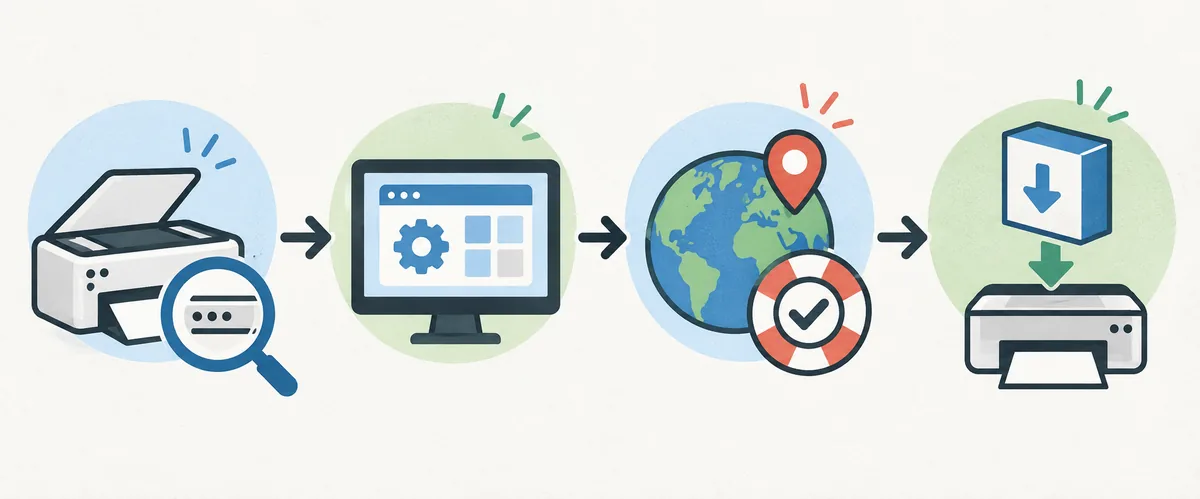
Before opening a download page, copy the complete name from the printer or scanner label, including the series suffix and model number. A nearby PIXMA model can use a different driver. If the label is hard to read, start with the site's Canon model index, then verify the name on the official product page.
Record the operating system and connection too. A Windows installer is not evidence of macOS support, and an older package should not be assumed compatible with a newer release without a Canon note. USB, Wi-Fi and Ethernet can change the required scanner component.
| Check first | Why it matters | What to record |
|---|---|---|
| Full model | Packages are not interchangeable | Model and suffix |
| Operating system | Installer support can differ | Windows or macOS release |
| Region | Canon pages and files vary by market | Canon support domain |
| Connection | USB and network discovery use different paths | USB, Wi-Fi or Ethernet |
Where to download MP Navigator EX
Use the official Canon model page as the final download route.
There is no safe universal MP Navigator EX download button for every Canon device. Open Canon Support, search for the exact model and set the operating-system filter manually if automatic detection is wrong. Review the software and driver categories together; the application may be listed inside a recommended package rather than as a standalone file.
A regional support page exposes the package description, supported system and model context. This page does not host, rename or redistribute Canon installers. If Canon lists a manual, driver or complete setup package, follow that route instead of substituting an unverified archive.
- 1. IdentifyWrite down the exact Canon model and suffix.
- 2. SelectChoose the installed Windows or macOS release.
- 3. CompareRead the MP Navigator EX, driver and setup descriptions.
- 4. VerifyCheck the Canon domain, package name and compatibility note.
- 5. InstallUse the official installer and keep the support page available.
Windows and Mac compatibility notes
The same application name does not guarantee the same platform support.
On Windows, MP Navigator EX is commonly associated with older Canon PIXMA or CanoScan packages. Canon may list it beside a scanner driver, setup package or model-specific utility. Install the components named for the model and restart if requested; a successful print test does not prove that scanning is installed.
On Mac, Canon may use another application name or provide only model-specific support. Check the macOS release and permission prompts. If Canon documents IJ Scan Utility Lite instead, follow that guidance rather than forcing an old Windows package through a compatibility layer.
On either platform, keep the first test simple: connect the device, select the active scanner, scan one page and save it locally. Network shares, VPNs and protected folders are easier to investigate after a local scan succeeds.
- Do not use a Windows package on macOS unless Canon explicitly documents that path.
- Confirm the scanner driver as well as the application name.
- Prefer a local save folder for the first test scan.
- Record the Canon region and package description for future reinstalls.
Install MP Navigator EX and complete a first scan
A working installation ends with a saved file that opens correctly.
Close other Canon utilities before starting and follow the package's connection timing; some installers expect the USB cable to remain disconnected until device detection. For a network scanner, keep both devices on the same local network and avoid changing router or VPN settings during the first test.
After setup, open MP Navigator EX from the documented Start menu, Applications folder or Canon Utilities location. Select the scanner, place one clean page on the glass and run a basic document or photo scan. Save locally and open the PDF or image before changing resolution, color, OCR or destination settings.
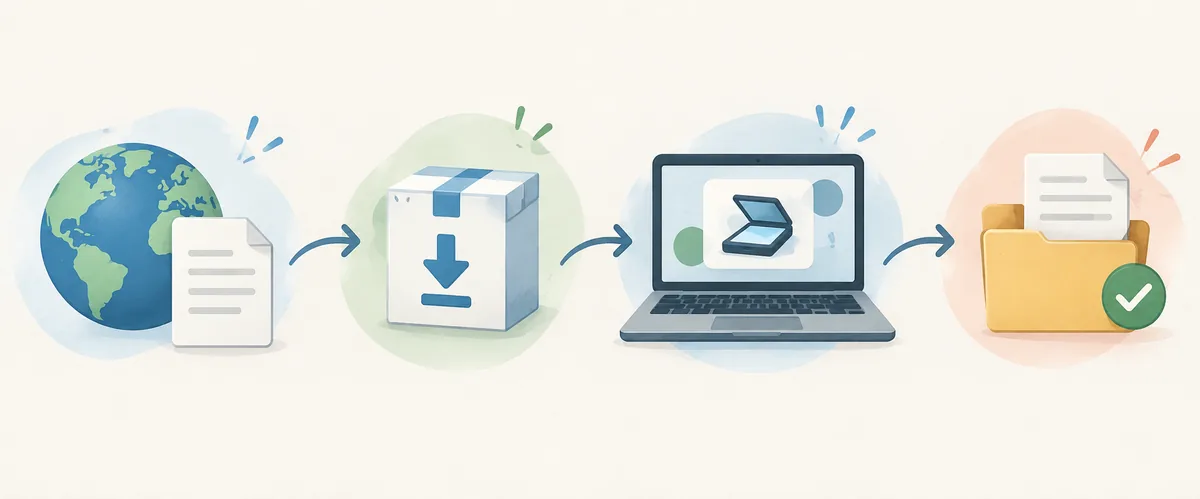
- PrepareClose duplicate Canon utilities and choose one connection method.
- InstallFollow the official package prompts and required restart.
- SelectChoose the active scanner entry inside MP Navigator EX.
- ScanRun one basic document or photo scan.
- CheckOpen the local file before adding advanced settings.
Fix common MP Navigator EX problems
Match the symptom to the missing part instead of reinstalling everything at once.
If MP Navigator EX is installed but no scanner appears, check the scanner driver, connection and selected device before deleting packages. Try a direct USB cable and another port, or confirm the same local network and disable a temporary VPN. Remove an offline duplicate only after identifying the active device.
If the application cannot save, test a local folder with a simple filename. Protected folders, cloud placeholders and network shares can fail while scanning works. If a scan is blank, clean the glass, confirm the source type and test a basic document setting.
| Symptom | First check | Next safe action |
|---|---|---|
| App missing | Canon Utilities and Start/Applications search | Recheck the exact model package |
| No scanner | Driver and USB/network entry | Use one active connection path |
| Blank scan | Glass, source type and preview | Test a basic document mode |
| Cannot save | Local folder permissions | Save locally before using a share |
MP Navigator EX vs other Canon scanner software
Use the product family and package description to decide which name belongs to your device.
Use the comparison below as a starting point, then confirm the exact device page before downloading.
| Name | Typical role | Do not assume |
|---|---|---|
| MP Navigator EX | Selected older PIXMA and CanoScan scanning workflows | One universal current installer |
| IJ Scan Utility | Supported Canon inkjet scanning on Windows | It replaces every older package |
| IJ Scan Utility Lite | Supported Mac-oriented scanning workflows | It is the same Windows file |
| MF Scan Utility / ScanGear | MF-family utility or scanner-driver layer | It belongs to every PIXMA device |
What to avoid when searching for a download
A short checklist helps you reject stale or repackaged files.
Avoid pages that promise one latest MP Navigator EX installer for every Canon printer, hide the model and operating system, or provide a download manager instead of a package description. A mirror can remove the context that tells you whether the scanner driver is required. Do not disable security protections for an unknown archive.
For a future reinstall, save the official support URL, model, system, region and package name.
- Model and suffix checked
- Operating-system filter checked
- Canon region and domain checked
- Application and scanner driver descriptions read
- First scan saved and opened locally
Official MP Navigator EX sources
Use Canon's regional support pages for the final package decision. Official pages may show different versions, dates or file sizes for different models; this guide therefore treats those fields as model-specific and does not invent a universal latest release.
MP Navigator EX download FAQ
Where can I download MP Navigator EX?
Open the official Canon support page for the exact model, choose the operating system and review the software and driver descriptions. Use that model page instead of a generic mirror.
Is there one latest MP Navigator EX version for every Canon scanner?
No universal version should be assumed. Canon lists packages by model, operating system and region, so confirm the version and availability on the official model page.
Can I use MP Navigator EX on Windows 11?
Only when Canon documents it for your exact model and Windows release; a similar printer's package is not enough evidence.
Why does my Canon printer print but not scan in MP Navigator EX?
Printing can work while the scanner driver, application or connection is incomplete. Check the exact package, active scanner and USB or local-network path.
Should I install MP Navigator EX or IJ Scan Utility?
Use the name and package Canon lists for your exact model. The utilities serve different supported products and platforms.
What should I test after installation?
Select the active scanner, scan one document or photo, save it locally and open the file before changing advanced settings.