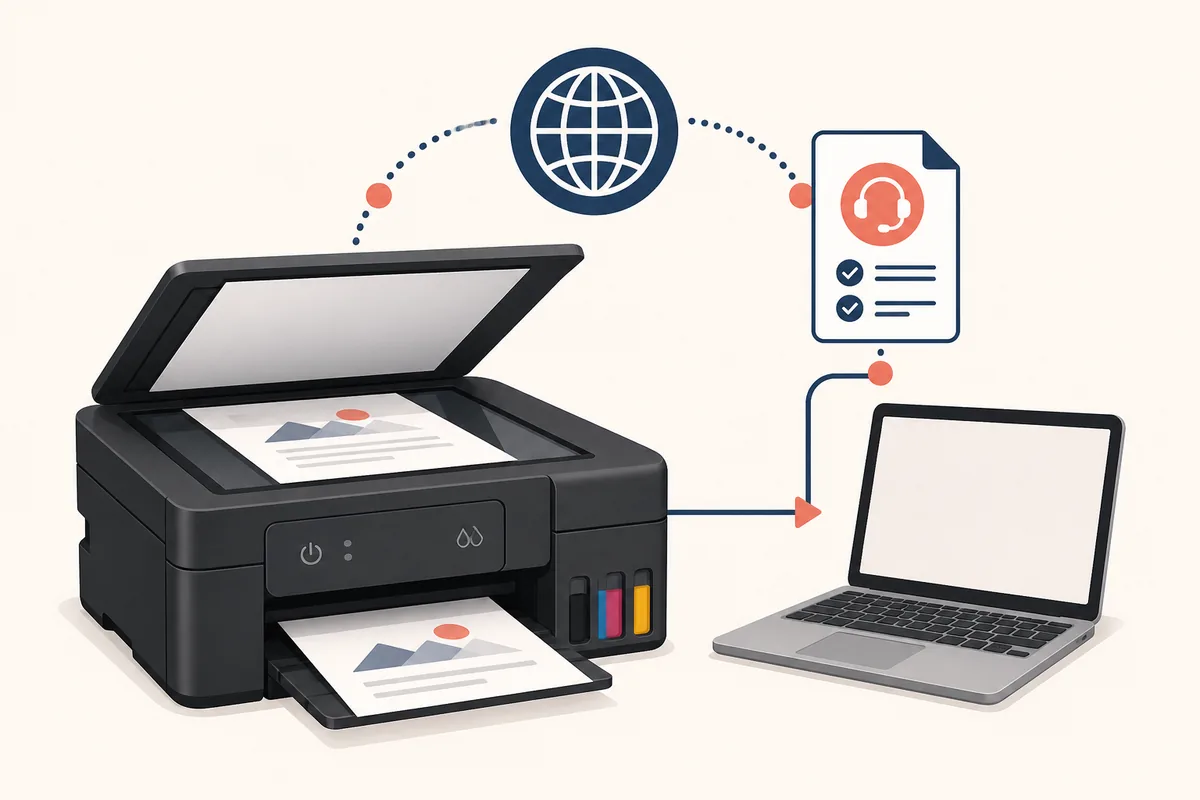
Start with the exact Canon G2010 model
The phrase Canon G2010 driver has model-level download intent, but the package still has to match the printer label, support region and operating system.
Read the public model name from the printer body, setup sheet or original packaging before you search. Canon G2010 can be confused with nearby PIXMA G-series models, yet G3000, G3010, G3110 and G3730 do not automatically share the same regional package list. A similar-looking printer is not proof that its scanner component can be exchanged safely.
This page focuses on the Canon G2010 driver, printer driver and scanner workflow as one model boundary. If the label says G3010, G3110 or G3000, use the matching guide instead of installing a G2010 package. The exact model number is more useful than a generic search for Canon scanner software.
Use the public product name for the search and keep the serial number private. Canon may request a serial number during an official support process, but it is not the right public keyword for finding a compatible download. Record the model, region and operating system before you open a package page.
- Confirm that the device label says PIXMA G2010 or the exact regional model name.
- Choose the Canon region where the printer is sold or supported.
- Select Windows 11 or Windows 10 before comparing package names.
- Treat a printer driver, MP Drivers package and scanning utility as related but different components.
- Keep G3000, G3010, G3110 and G3730 searches on their own model pages.
| Search phrase | What it usually means | Best page action |
|---|---|---|
| Canon G2010 driver | Model-level driver lookup | Use this guide and the official support route |
| Canon G2010 scanner driver | Scanning component or first-scan problem | Use this guide's package and troubleshooting sections |
| Canon G2010 driver download | Download navigation | Open Canon Support after checking region and OS |
| Canon G2010 printer driver | Printing package lookup | Read the package description and supported model list |
| Canon G2010 driver Windows 10/11 | Operating-system-specific package | Use the platform section and the matching Windows guide |
Verify the official Canon G2010 package
Canon's regional package record is more reliable than a copied driver table or a download site that promises one universal installer.
The official Canon India record checked for this guide lists Windows MP Drivers Ver. 1.3, file name win-g2010-1_3-n_mcd.exe, size 20.11 MB and an update date of November 28, 2024. The page identifies Windows 11 and Windows 10, including 32-bit and 64-bit entries. Canon Philippines exposes the same issue record through its own regional support route, which is why the page uses official support fallbacks instead of a guessed file mirror.
A version, file size or package name can change when Canon changes a region, language or operating-system filter. Do not copy the Windows record into a Mac or Linux claim. The checked record is a Windows verification snapshot; if your regional page shows a different package, follow the package description and compatibility notes on that live page.
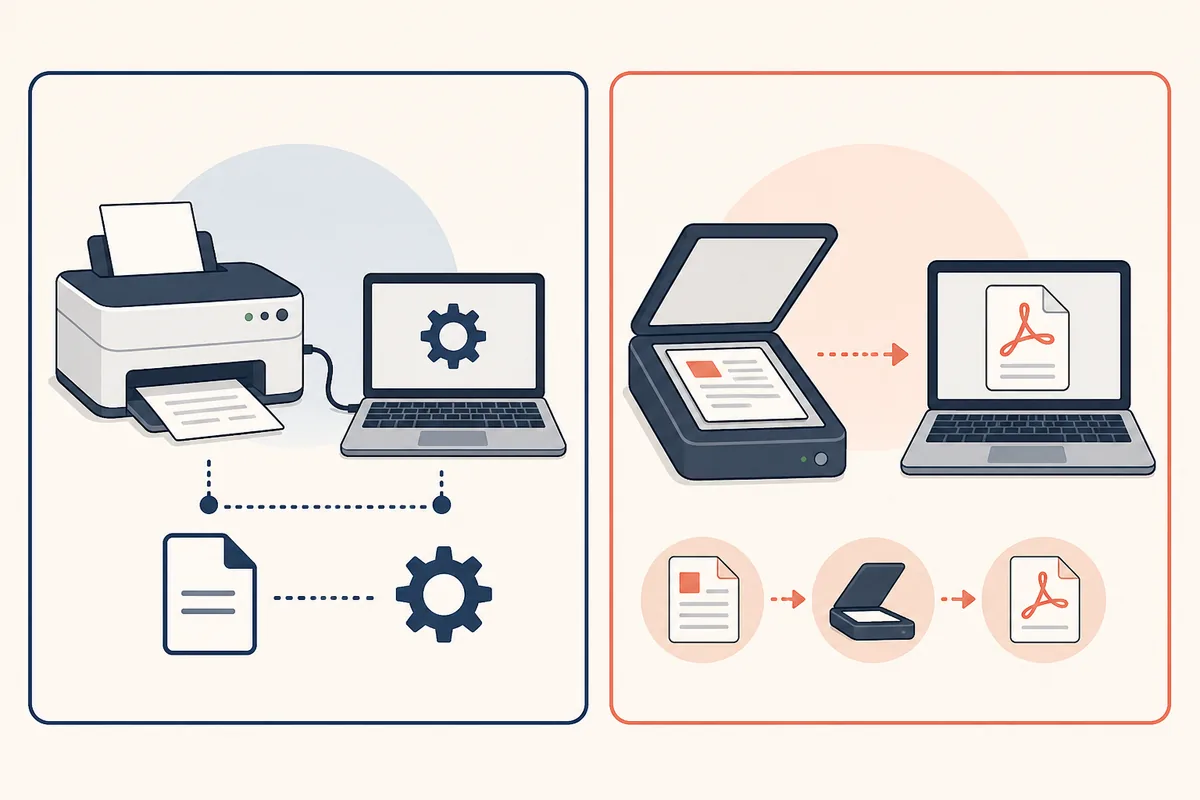
The word driver does not always describe the entire scanning experience. The package may install the device driver while IJ Scan Utility, ScanGear or another Canon component handles scanning. Check what the official listing includes, then test one simple scan before changing advanced settings.
| Official record | Verified detail | How to use it |
|---|---|---|
| Canon India Windows MP Drivers | Ver. 1.3; win-g2010-1_3-n_mcd.exe; 20.11 MB; updated November 28, 2024 | Confirm the live page still identifies G2010 and your Windows release |
| Canon Philippines regional record | Issue 0100913012; regional support page for the same G2010 package family | Use the region that matches the device and read its current notes |
| Mac or Linux | Not verified by the Windows record used here | Do not infer support; check the official regional model page |
| Direct file URL | No stable, region-independent link was verified | Use the official support page as the download destination |
Choose the Windows package before installing
A correct Canon G2010 driver download starts with the operating system and regional support page, not with the first executable name in a search result.
On Windows, select the installed release manually when Canon's page guesses incorrectly. Windows 11 and Windows 10 may expose different filters, and 32-bit or 64-bit selection can affect which package is shown. Read the supported product list and the package description before you click download.
If the listing offers MP Drivers, a full software package or a separate scanning component, do not choose only by file size. A basic print path can work while the scanner application is absent. The safest sequence is to install the package Canon names for the G2010, let the setup finish, then search the Start menu for the installed Canon utility.
The site already has separate Windows guides because the operating-system page is part of the search intent, not because one package should be copied across every model. Use those guides for system-level checks, but keep the exact G2010 model boundary on this page.
- Do not mix G2010 and nearby PIXMA G-series packages during troubleshooting.
- A desktop shortcut is not proof that the utility is installed or missing.
- Region and language filters can change the package list shown by Canon.
- If the live page differs from the record above, trust the live regional page.
- Choose the regionOpen Canon Support for the market where the G2010 is sold or supported.
- Select the systemChoose Windows 11 or Windows 10 and confirm the architecture when Canon asks.
- Read the packageCheck that the G2010 model and scanner or driver purpose appear in the official description.
- Keep the recordSave the package name, version, size, date and official source page for the next reinstall.
Install the G2010 package and run a first scan
The practical finish line is not a successful download; it is a G2010 scanner that appears in the installed workflow and saves one small test file.
Close unrelated scanning tools before you begin. Follow the official installer prompts, connect the printer only when the instructions request it and let registration finish before opening the scanning application. If printing already works, do not assume the scanner component is complete: printing and scanning can be represented by different package pieces.
After setup, search the Windows Start menu for the Canon utility named by the package. Put one plain document on the flatbed, choose a simple document or photo mode and save a small PDF or JPEG to a folder you can find. Open the file before changing resolution, correction, naming or network settings.
If more than one Canon device appears, select the entry that matches the G2010 and the active connection. Keep the first test simple. A successful baseline helps separate an installation problem from a later folder permission, USB cable or device-selection issue.
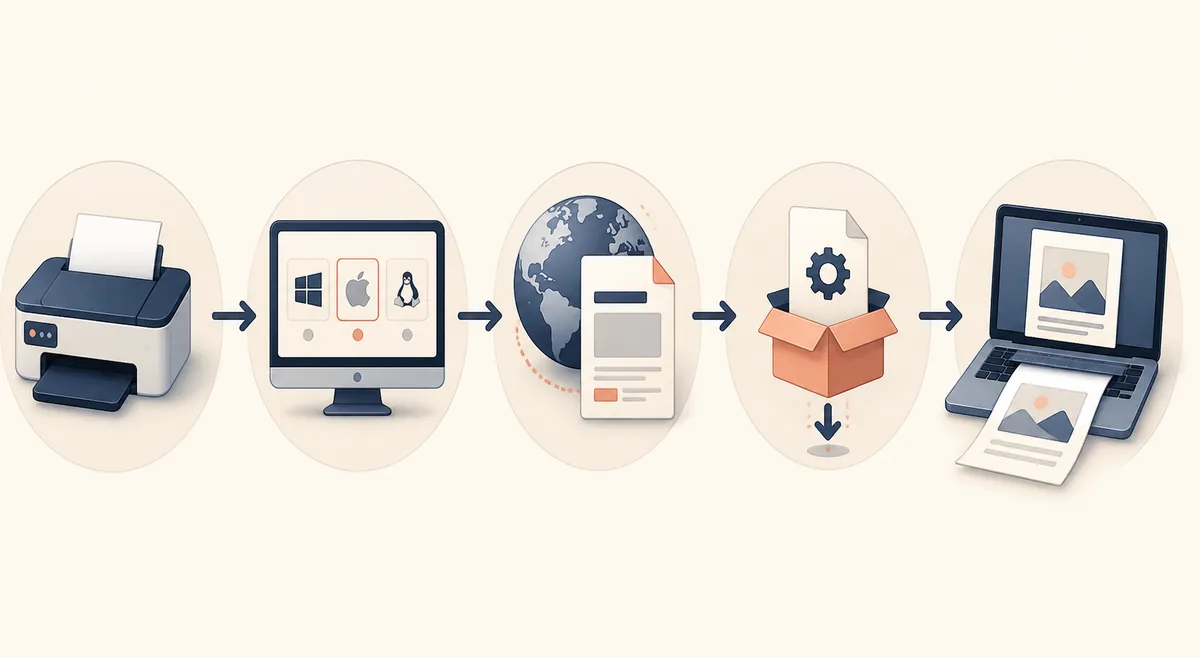
- Prepare the printerPower on the G2010, place the document on the glass and close unrelated scan programs.
- Finish setupInstall the official package and wait for the device registration or restart to complete.
- Open the utilityUse the Canon application shown by the package rather than downloading a second copy.
- Test a small fileSave one PDF or JPEG, open it and note whether the G2010 was detected over the chosen connection.
Fix a Canon G2010 that prints but will not scan
Separate a missing scanner component from a connection, device-selection or save-permission problem before reinstalling.
If the G2010 prints but does not scan, check the installed package first. Windows may have a basic print driver while the Canon scanning utility or scanner component is missing. Search the Start menu and the installed Canon folders, then return to the official model page if the application is absent.
If the scanner is present but not detected, test one direct USB connection and check that the G2010 entry matches the active device. A cable, a second queue or a stale device selection can create a failure that a new download will not solve. Keep VPN, firewall and network changes out of the first USB baseline.
If a scan starts but cannot save, check the destination folder, file name and Windows permission. A save error is not evidence that an unrelated mirror is needed. Record the exact symptom, connection type and package record before you reinstall.
- Do not install G3000, G3010 or G3110 packages as a shortcut.
- Record the exact error before removing a working print driver.
- Return to the official Canon route when the package description is unclear.
- Use the existing network guide only when the connection is Wi-Fi or LAN related.
| Symptom | First check | Useful next step |
|---|---|---|
| The G2010 prints but does not scan | Confirm the complete G2010 package or scanner component | Review the Canon utility and installation guide |
| The utility is missing | Search Start and installed Canon folders | Use the missing-utility checklist before another download |
| No scanner is detected | Check USB, power and the selected G2010 entry | Run one direct connection test |
| The scan cannot save | Check the folder, file name and Windows permission | Save one small PDF or JPEG first |
| The page shows a different package | Confirm region, model and operating-system filter | Use the live Canon page instead of an old mirror |
Keep a safe Canon G2010 download record
A small record prevents the next reinstall from becoming another model, region or package guessing exercise.
Write down the exact model label, Canon region, Windows release and package name you used. If the official page exposes an issue number, version, update date or file size, save it with the source page and the date checked. If Canon changes the listing later, you will know which record needs re-verification instead of treating an old file as universally current.
This site does not host, rename or repackage Canon installers. A regional support page or file-detail page is the safer final destination than a copied EXE link, because Canon can place a disclaimer, a language filter or a temporary handoff before the download begins. Keep the live official page open while you compare the package.
The official IJ Scan Utility manual is useful for understanding Auto Scan, document and photo modes, ScanGear and WIA troubleshooting, but the manual does not replace the model-specific package check. Verify the G2010 route first, then use the manual to understand the installed workflow.
- Save the official sourceKeep the Canon support or file-detail page used for the decision.
- Record the packageNote the visible version, file name, date, size and supported system.
- Record the testWrite down the connection type and whether a simple scan opened successfully.
| Record field | What to save |
|---|---|
| Model | Complete public model name from the printer |
| Region | Canon market and official source page |
| System | Windows 11 or Windows 10 and architecture |
| Package | Full setup, MP Drivers or other official listing |
| Freshness | Visible version, date, size and the date you checked |
| Result | USB or other connection and first PDF/JPEG scan outcome |
Canon G2010 driver and scanner questions
Which Canon G2010 driver should I download?
Open Canon Support for the region where the printer is supported, select Windows 11 or Windows 10 and read the package description. The official Canon India record checked for this guide lists MP Drivers Ver. 1.3, but the live regional page should make the final decision.
Is the Canon G2010 scanner driver the same as the G3000, G3010 or G3110 driver?
Do not assume that nearby PIXMA G-series packages are interchangeable. Search the exact public model name and confirm the supported product list on Canon Support. Use the separate G3000, G3010 or G3110 guide when the printer label shows that model.
How do I scan using a Canon G2010?
Install the official G2010 package, open the Canon scanning utility named by that package, place one document on the flatbed, choose a simple document or photo mode and save a small PDF or JPEG. Test the basic workflow before changing advanced settings.
Does the verified G2010 package support Windows 11?
The official Canon India record checked on August 16, 2026 lists Windows 11 and Windows 10 support, including 32-bit and 64-bit entries. Confirm the current regional page before installing because Canon can change package availability and filters.
Can I download a Canon G2010 EXE directly from this site?
No. This site does not host or rename Canon installers. Use the official Canon support or file-detail page, where the region, model, operating system and current package description can be checked immediately before download.
What if the G2010 prints but the scanner is missing?
Check whether only a basic print driver was installed, search the Start menu and Canon folders for the scanning utility, then confirm the USB connection and selected G2010 entry. Use the missing-utility and installation guides before trying an unrelated mirror.