How to scan multiple pages into one PDF with Canon IJ Scan Utility
The important setting is PDF (Multiple Pages), not the shorter PDF option.
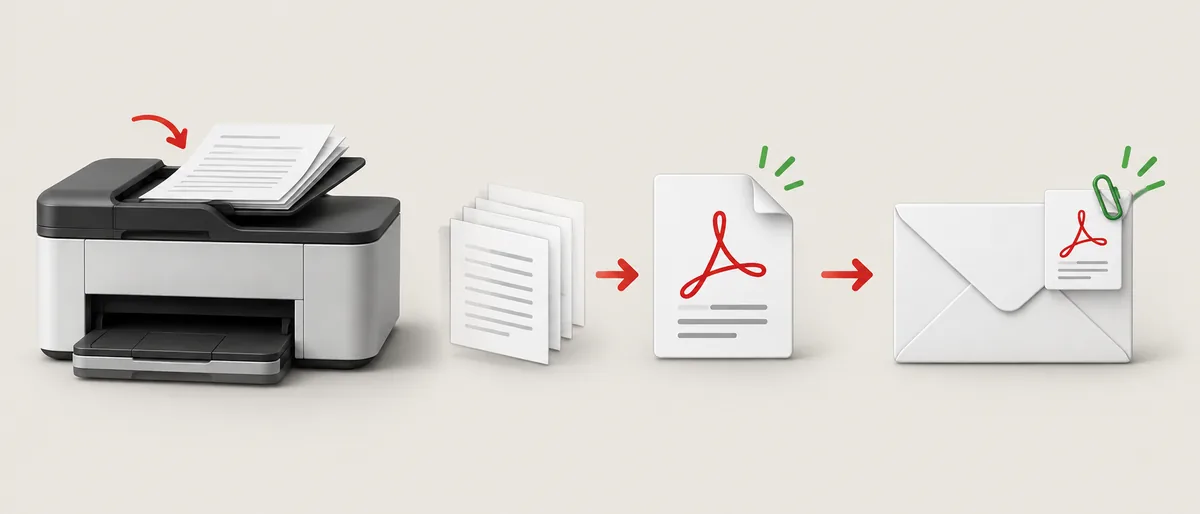
Open the Canon utility supplied for your model and select Settings. Choose Document Scan, find Data Format in Save Settings, and select PDF (Multiple Pages). Confirm the save folder and file name, then choose OK. On the main IJ Scan Utility window, select Document to begin the first scan.
When the first page finishes, the Scan Complete dialog lets you place another original and choose Scan. Continue until every page is captured. Select Exit to finish the set. The combined file is written to the folder shown in Save Settings. Open it before sending or filing it so you can confirm that all pages are present, upright, readable, and in the intended order.
If Data Format is set to PDF instead of PDF (Multiple Pages), each scan can be saved as a separate file. That is a setting issue, not proof that the printer cannot create a multi-page PDF.
Scan several pages from a flatbed into one PDF
Use the glass when the printer has no feeder or when each page needs careful placement.
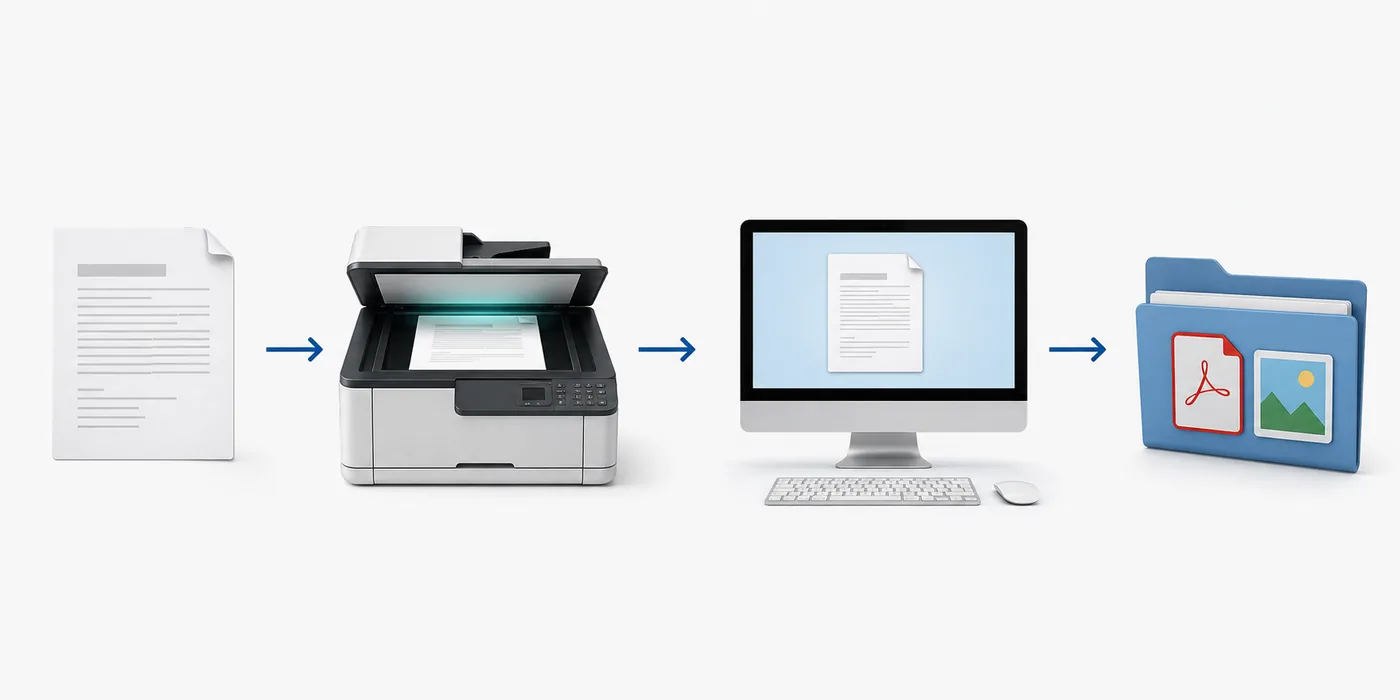
Place the first original face down on the glass and align it with the guide mark. In IJ Scan Utility, select Document. Wait for the Scan Complete dialog instead of closing the utility after the first page. Remove the original, place the next page in the same orientation, and choose Scan to append it to the set.
Repeat the replace-and-scan cycle for the remaining pages. Keep a stack for pages already scanned and another for pages waiting. If a preview or saved page is rotated, correct the placement before continuing.
When the last page is complete, choose Exit. Open the PDF from the configured folder and step through its thumbnails. Check page count, order, crop boundaries, blank pages, and text readability. A combined file is useful only when the pages remain understandable to the person who will receive or archive it.
- Place page oneSet the original on the glass with the correct corner aligned to the guide mark.
- Start DocumentUse the Document button after confirming that PDF (Multiple Pages) is selected.
- Replace the originalWhen Scan Complete appears, remove the finished page and place the next one consistently.
- Choose ScanSelect Scan in the dialog to append the new page to the same PDF.
- Finish and inspectChoose Exit, open the saved file, and check every thumbnail before sharing it.
Use an ADF for a longer Canon document
An automatic document feeder is faster, but its available modes and limits belong to the individual model.
If your Canon printer has an ADF, fan the pages lightly, remove clips, align the edges, and load the stack within the marked guides. Do not exceed the feeder's stated capacity. In the utility, choose the ADF document option shown for your model, such as Document (ADF Simplex), Document (ADF Manual Duplex), or ADF (Auto Duplex). These labels are not universal, so use the option documented for the exact device.
Simplex scans one side of each sheet. Manual duplex may ask you to turn the stack over so the reverse sides can be scanned. Auto duplex handles both sides only when the scanner supports it. A single-sided document should not be sent through a duplex profile just because the option is visible; an unsupported or incorrect mode can produce blank pages or an unexpected order.
After the feeder finishes, inspect the first, middle, and last pages. Feeder rollers can pull two thin sheets together, skew a page, or leave a blank page when a document has mixed sides.
Choose PDF settings that keep the document usable
Format, resolution, and destination affect the final file more than a high number on a settings screen.
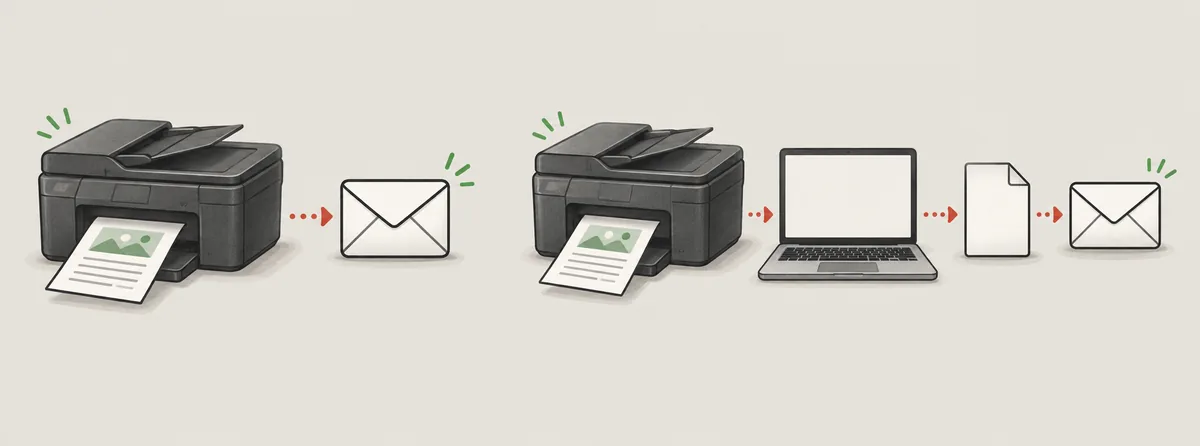
PDF is usually the practical choice for forms, receipts, letters, and multi-page records because the pages stay together. JPEG can make sense for a single photo, but a stack of JPEG files is harder to review and attach. If the utility offers searchable PDF or OCR, proofread names, dates, and account numbers before relying on the recognized text; recognition quality varies with contrast, typeface, and page condition.
Start with 300 dpi for ordinary text and increase it only when small print, fine lines, or later cropping require more detail. Color suits photographs or marked documents; grayscale can reduce size for plain text. Adjust one setting at a time and open a test page.
If the scan completes but no application opens, the file may still be saved. Canon notes that Do not start an application can return you to IJ Scan Utility without visible confirmation, so open the save folder manually before scanning again.
- Use PDF (Multiple Pages) for letters, forms, and multi-page records
- Start around 300 dpi for ordinary text and increase it only when detail requires
- Verify OCR output before trusting names, dates, or account numbers
Fix separate PDFs, missing pages, or a file you cannot find
Start with the setting and save path before reinstalling drivers or changing the connection.
If every page is saved as its own PDF, return to Settings > Document Scan and select PDF (Multiple Pages) in Data Format. Save the change with OK before starting another batch. A plain PDF selection can intentionally create one file per scan, so do not use a PDF merger until you have confirmed the utility lacks the combined option for your model.
If the first page saves but later pages never appear, wait for Scan Complete and choose Scan for each additional original. Closing the dialog, pressing Exit too early, or placing a new page without selecting Scan can end the set. If pages are in the wrong order, rescan a short batch with a marked test page and keep the physical stack separated while you work.
If the file seems missing, check the Save in folder and filename shown in Settings. Look in Documents or My Documents only when the utility is still using its default path. For a cloud folder or removable drive, confirm that it is mounted and signed in.
A final check before you send or archive the PDF
Treat the combined file as complete only after you inspect the actual output.
Open the PDF and review its page thumbnails from start to finish. Confirm the page count, orientation, crop, margins, legibility, color, and order. Look for duplicate pages, blank backs from an incorrect duplex choice, clipped signatures, and pages that were loaded upside down. If the document contains private records, use an approved storage or sharing method and verify the recipient before attaching it.
- The PDF opens with the expected page count and order
- Orientation, crop, readability, and duplex sides are correct
- The file is saved in the intended folder before sharing
Scanning multiple Canon pages into one PDF: FAQ
Why does Canon IJ Scan Utility save each page as a separate PDF?
Open Settings, choose Document Scan, and change Data Format to PDF (Multiple Pages). A plain PDF option can save each scan as its own file. Select OK before starting the batch, then scan the pages again.
Can I scan multiple pages into one PDF without an ADF?
Yes, when the Canon utility supports PDF (Multiple Pages). Place one page on the glass, choose Scan in the Scan Complete dialog after each replacement, and choose Exit after the final page.
How do I scan both sides of a document into one PDF?
Use an ADF duplex option only when the exact Canon model documents it. Manual duplex may ask you to turn the stack; auto duplex requires supported hardware. Inspect the final order for blank or reversed pages.
Where does Canon save a multi-page PDF?
The file is saved in the folder shown under Save in or Save Settings for Document Scan. The default can be Documents or My Documents, but a previous setup may use another folder.
What should I do if the Scan Complete dialog never appears?
Confirm that you started a Document scan and that PDF (Multiple Pages) is selected. If the utility still finishes after one page, check the model manual and installed Canon application for the supported multi-page workflow.
Is the PDF (Multiple Pages) option available on every Canon printer?
No. Data formats, ADF modes, duplex controls, and follow-up applications depend on the model, driver package, operating system, and region. Use the exact Canon manual when a control is missing.